Preview Translation Feature
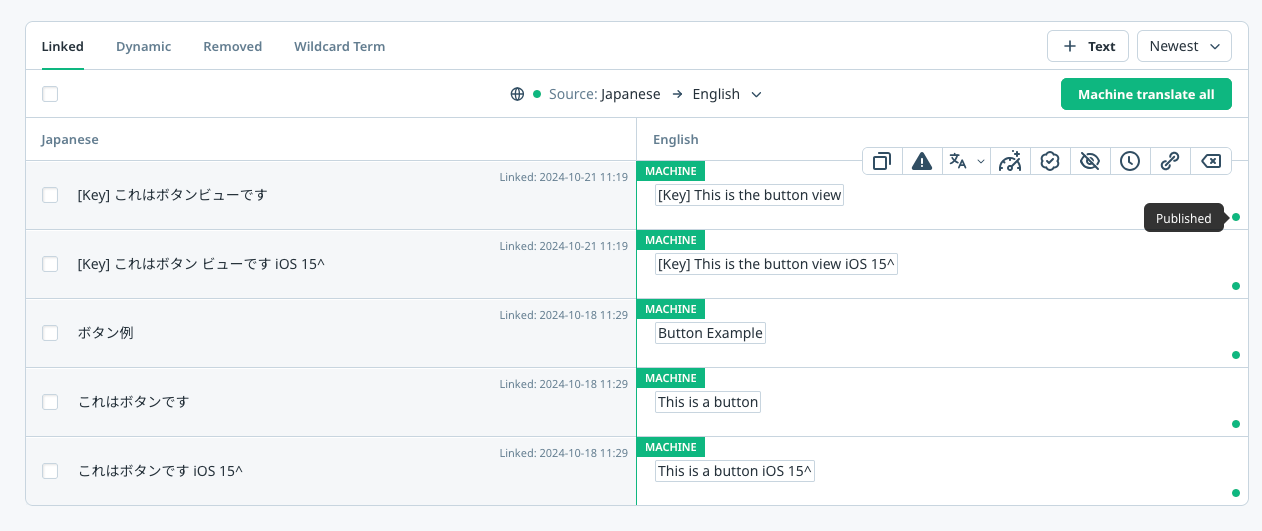
Preview Translation lets app operators review saved (unpublished) content inside the Flutter app while end users continue to see the published copy. This capability matches the behavior of other WOVN SDKs and is limited to devices running Debug Mode for Flutter v1.
Prerequisites
- Enable Debug Mode by following the steps in WOVN Debug Mode Feature. Preview mode only works when Debug Mode (App Operator Mode) is active on the device.
- Ensure the SDK has already been installed through the CLI (
wovnflutterfolder +wovn.yaml).
Enable Preview Translation
-
Open the
wovn.yamlfile that the installer placed in your Flutter project (typically listed under theassetssection ofpubspec.yaml). -
Add or update the
translation_preview_modeflag:TOKEN: YOUR_TOKEN
LOG_LEVEL: 1000
translation_preview_mode: true -
Save the file, run
flutter pub getif prompted, and restart your Debug Mode build. -
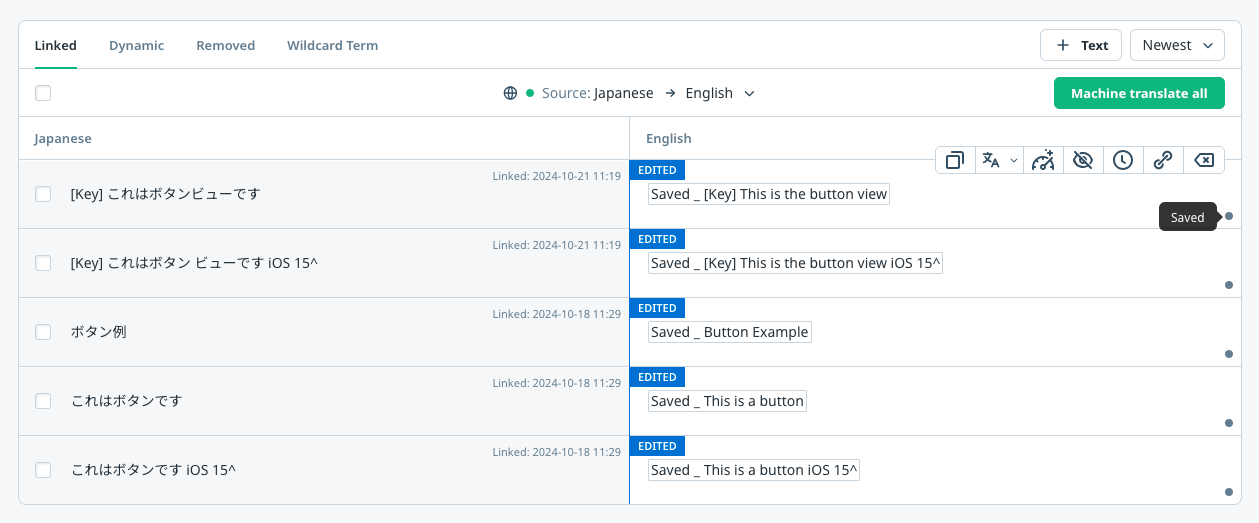
In the WOVN dashboard, edit your content and click Save (not Publish). The Debug Mode device will now render the saved translations.
Expected Behavior
- Debug Mode devices render saved translations immediately after you click Save in the dashboard.
- Production users (no Debug Mode) continue to see the latest published translations.
- Switching
translation_preview_modeback tofalseor exiting Debug Mode reverts the device to published content only.
Troubleshooting
- Preview does not activate: Confirm the device is still in Debug Mode (see 004_debug_mode.md) and that you restarted the app after editing
wovn.yaml. - Saved text missing: Saved translations can take up to a minute to sync. Try reloading the screen or relaunching the app after clicking Save in the dashboard.
- End users see saved data: Verify Debug Mode is disabled in release builds and that
translation_preview_moderemainsfalsein the productionwovn.yaml.