Enable Development Mode
Development Mode Benefits
Development mode enables rapid reporting and instant translation updates. Each device installation generates a unique Client ID that must be registered.
Additionally, Development Mode enables Preview Translation, allowing you to preview saved translations before publishing them.
Step 1: Find Your Client ID
You can find your Client ID in two ways:
- Check Logcat: Filter by
Wovn: loadDataAndStartWovn: - In code: Call
Wovn.getClientID()
Step 2: Register Your Device
- Open the WOVN Dashboard
- Navigate to your project
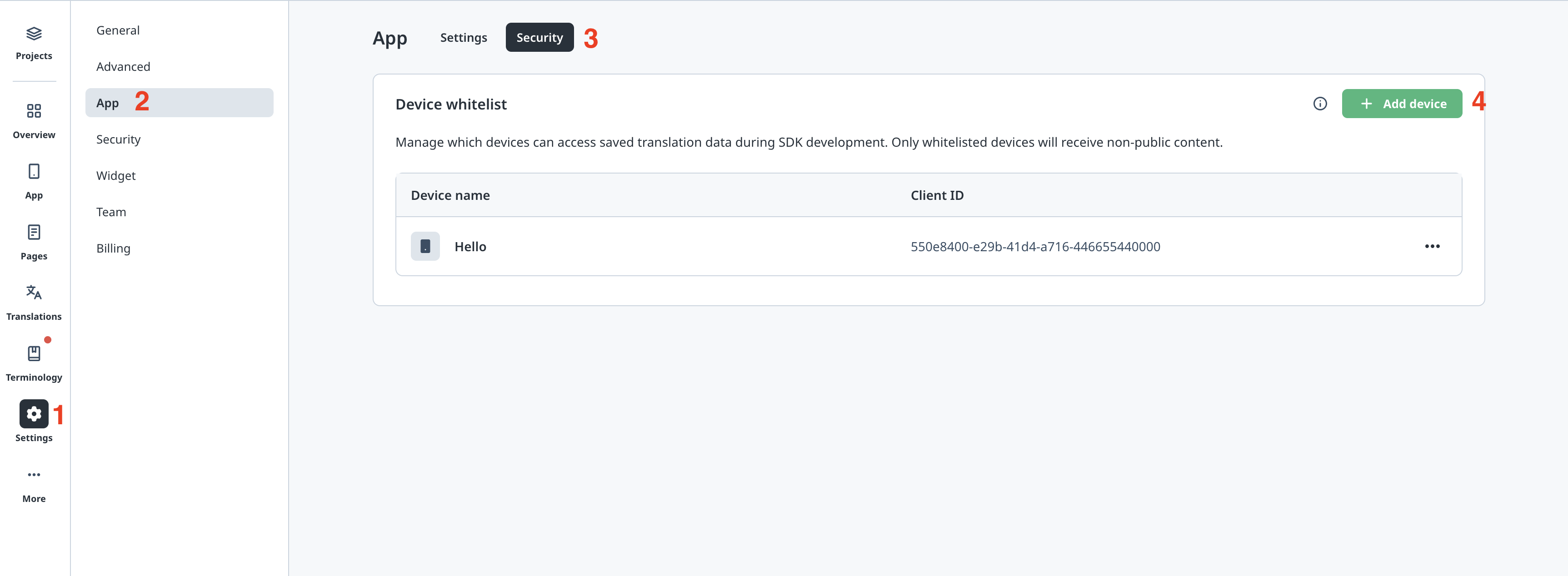
- Go to Settings → App → Security
- Click Add Device and enter your Client ID
Step 3: Verify Development Mode Activation
Wait 2-3 minutes for the registration to take effect, then restart your app. In Logcat, filter for Wovn: loadDataAndStartWovn:, you should now see Report:ON:
Wovn: loadDataAndStartWovn:
    WOVN: Report:ON;ClientID: f147c92d-3d51-442a-871e-6aeb526cc0ea
    Development mode enabled: false
    ClientID: f147c92d-3d51-442a-871e-6aeb526cc0ea
    Helpers.getDeviceLanguages [ko-KP, en-US, ja-JP, vi-VN, it-IT, zh-Hans-CN, zh-Hant-TW]
    Available Languages: [zh-CHS, en-US, vi, ja, it, en-GB, zh-CHT, nl]
    Current Language: en-US
Important Notes
Client ID Management
- Client ID Reset: The Client ID will change each time you delete and reinstall the app, or install on a new device. You'll need to register the new Client ID in the dashboard.
- Log Level: Ensure the
loglevelin yourwovn.propertiesfile is set to0to display all log information, including development mode status and Client ID. - Activation Delay: It may take 2-3 minutes for Client ID registration changes in the dashboard to affect your app.