Preview Translation Feature
The Preview Translation feature lets app operators review saved (unpublished) translations inside the Flutter app while end users continue to see the last published content. This is ideal for validating layout changes or copy updates before releasing them publicly.
How It Works
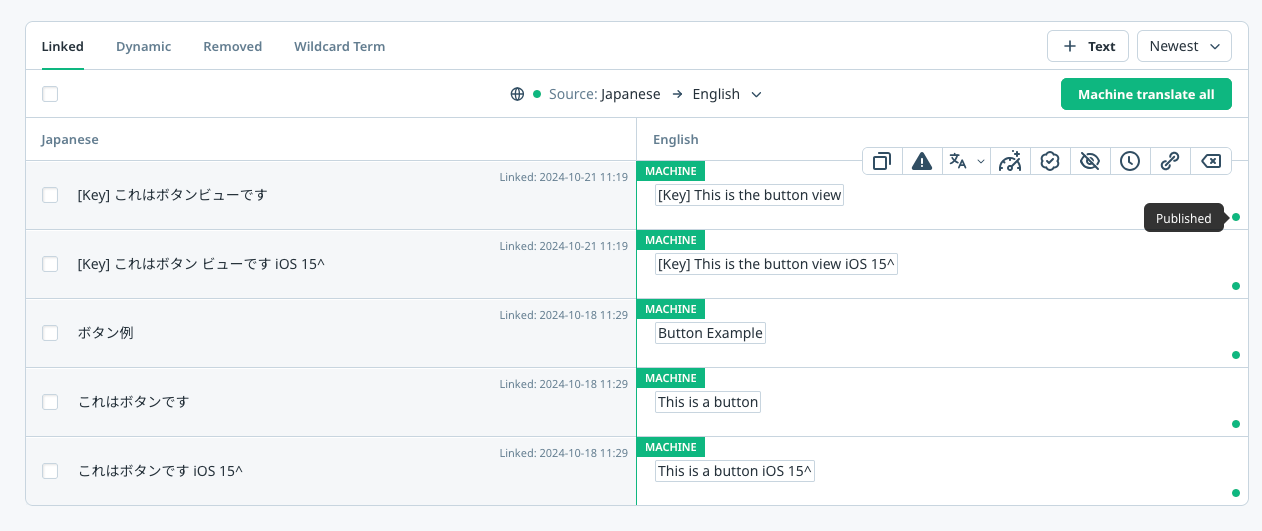
- End users (no development-mode flag) see only the latest published translations from the WOVN Dashboard.
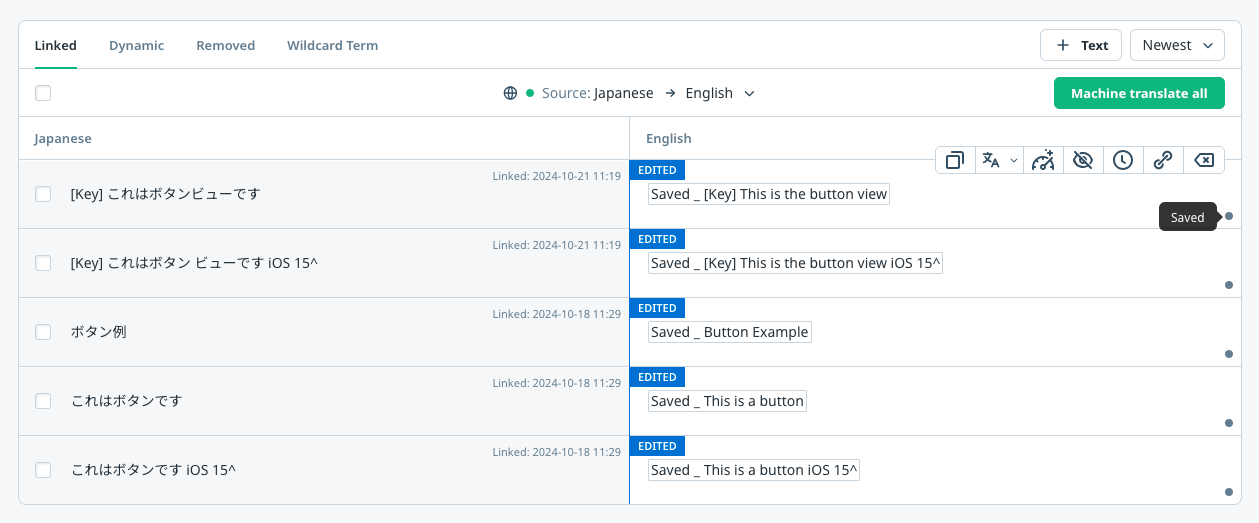
- App operators (devices running in Development Mode) see the saved translations that have not been published yet.
- Preview mode is disabled automatically if Development Mode is off, ensuring that saved content never leaks to production users.
Prerequisites
- Register your device in Development Mode using the Client ID workflow documented in Enable Development Mode.
- Use Flutter SDK v4 (
Wovn.initialize) so you can pass runtime configuration viaLocalSettings.
Enable Preview Translation
-
Update the
Wovn.initializecall to enable preview mode inLocalSettings:lib/main.dartawait Wovn.initialize(
token: 'YOUR_TOKEN',
config: const LocalSettings(
logLevel: 0,
translationPreviewMode: true,
),
); -
Save the file and restart your Flutter app on the development-mode device.
-
In the WOVN Dashboard, click Save (not Publish) after editing content, then reload your screen. Only devices with preview mode enabled will see the saved text.
Expected Behavior
- Devices registered in Development Mode now render the saved translations immediately after you click Save in the dashboard.
- Devices without Development Mode continue to render only the published translations.
- Turning off Development Mode or setting
translationPreviewModeback tofalsereturns all devices to published content only.
Troubleshooting
- Preview flag ignored: Confirm that the device’s Client ID appears under Settings → App → Security and that the status shows as active.
- App still shows published text: Ensure that
translationPreviewModeis set totrueand that you restarted the app after changing the configuration. - Operators see stale text: Saved content can take up to a minute to propagate. Pull down to refresh or relaunch the app after clicking Save in the dashboard.